Dynamic Contrast in Photoshop: The Unsharp Mask Trick
A counterintuitive Unsharp Mask setting that makes a portrait pop, plus how I use a tweaked curves layer for global contrast.
For this tip I want to focus on post-production rather than shooting. No matter how good a photographer is, the limits of in-camera capture mean nearly every commercial shoot gets some post work, in a darkroom for film or in Photoshop for digital. One of the biggest jobs in post is adding, removing and shaping contrast, and everybody sees contrast a little differently. Here's my quick approach.
Global contrast vs. dynamic contrast
I think of these as two completely different things. I have no idea whether there are more official terms, but this is how I sort them in my head, so bear with me.
Global contrast is applied evenly to the highlights and shadows across the whole image. Most photographers, me included, use a curves layer for it so the change stays non-destructive.
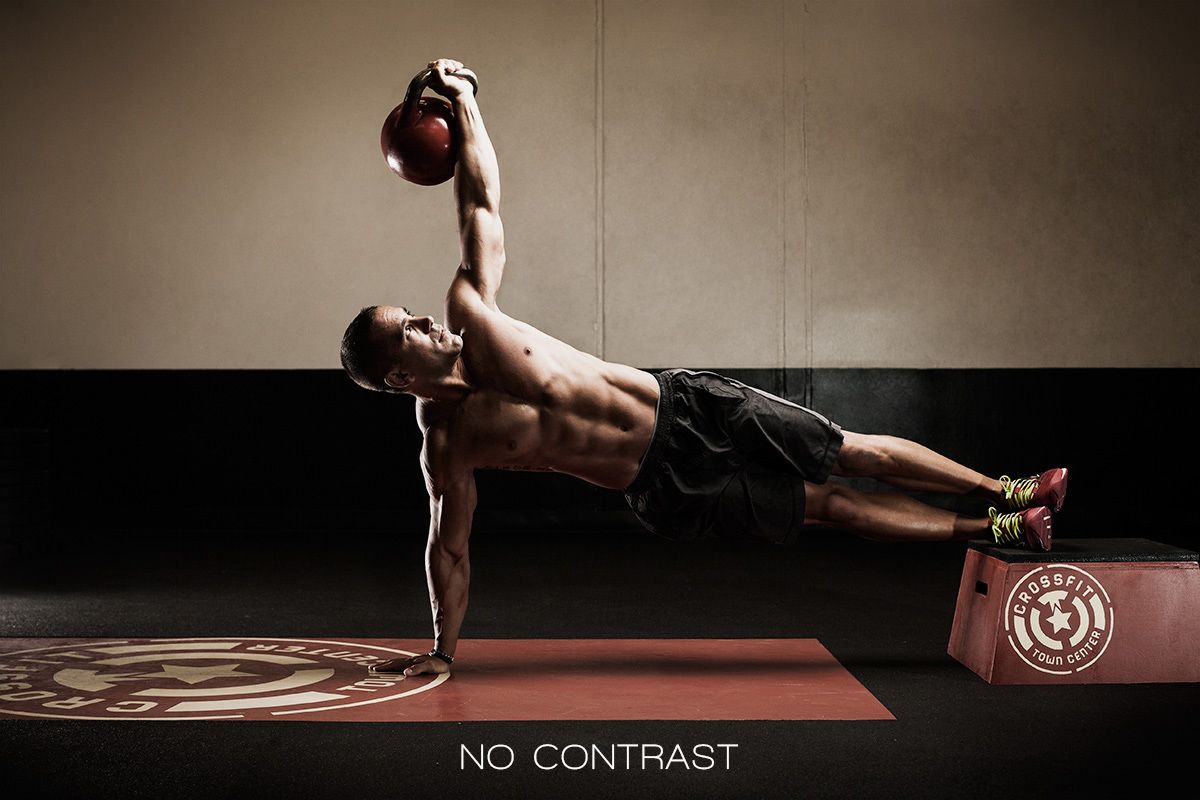
Dynamic contrast is the extra pop I add with a little trick that uses a Photoshop tool in a way it's not usually thought of. It's an action I built for myself. I wouldn't use it on a beauty shot, but for the edgy look I'm usually after, it works very well. Here's the photo before any of it.
Applying dynamic contrast
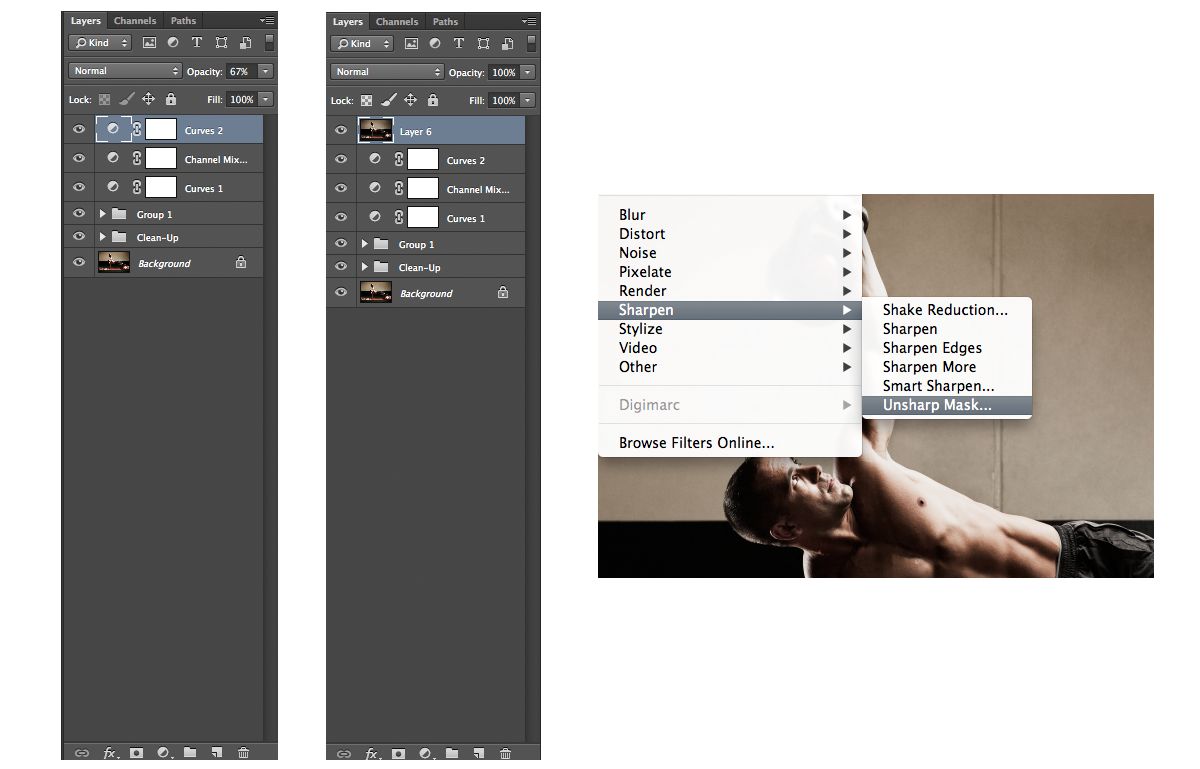
1. Create the merged layer. First, finish every other edit you plan to make. Then merge all visible layers into a new layer on top (Cmd+Option+Shift+E on a Mac, Ctrl+Alt+Shift+E on a PC). This new layer covers everything beneath it and becomes the new base image, so if you later spot something you need to clone out, you'll have to redo this step.
2. Apply Unsharp Mask. With the new layer selected, go to Filter > Sharpen > Unsharp Mask. Now comes the counterintuitive part. Use these settings:
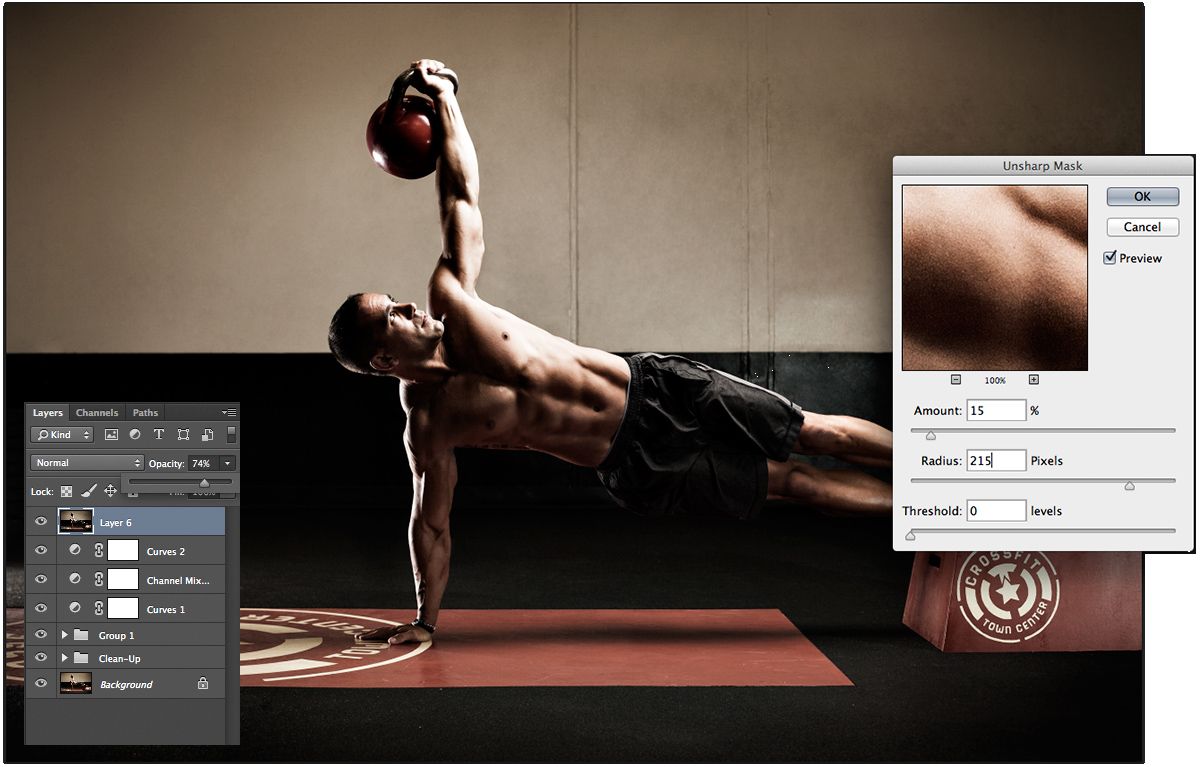
- Amount: 12%
- Radius: 215 (yes, 215!)
- Threshold: 0
Toggle the preview on and off and you'll see a really cool, dynamic effect that makes the image pop. Maybe a little too much.
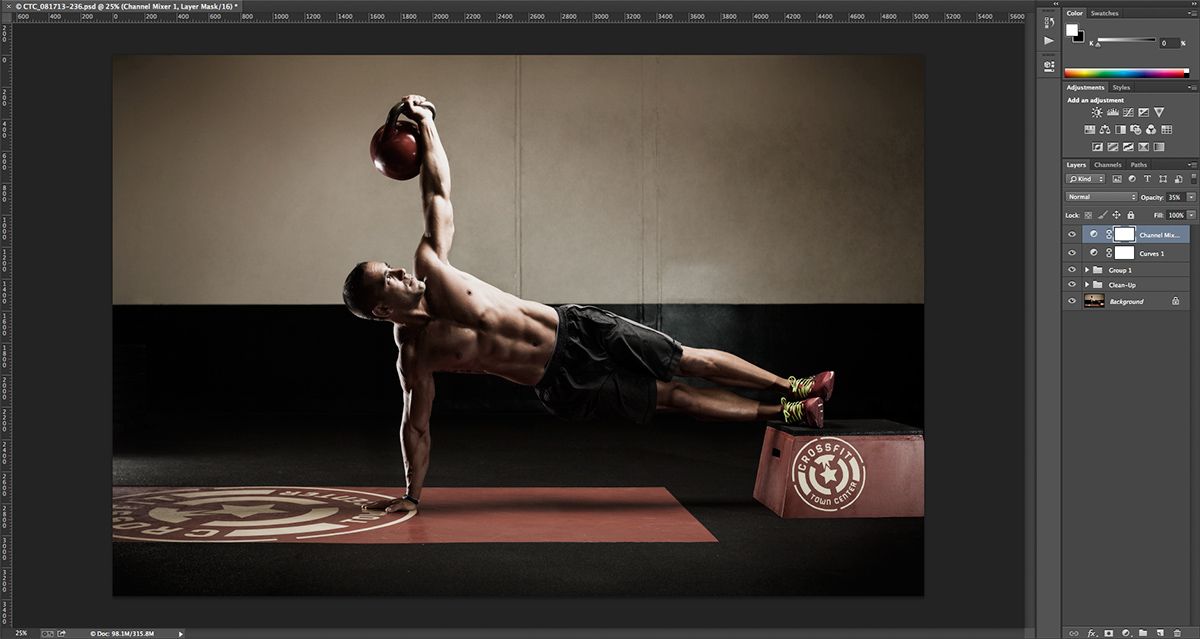
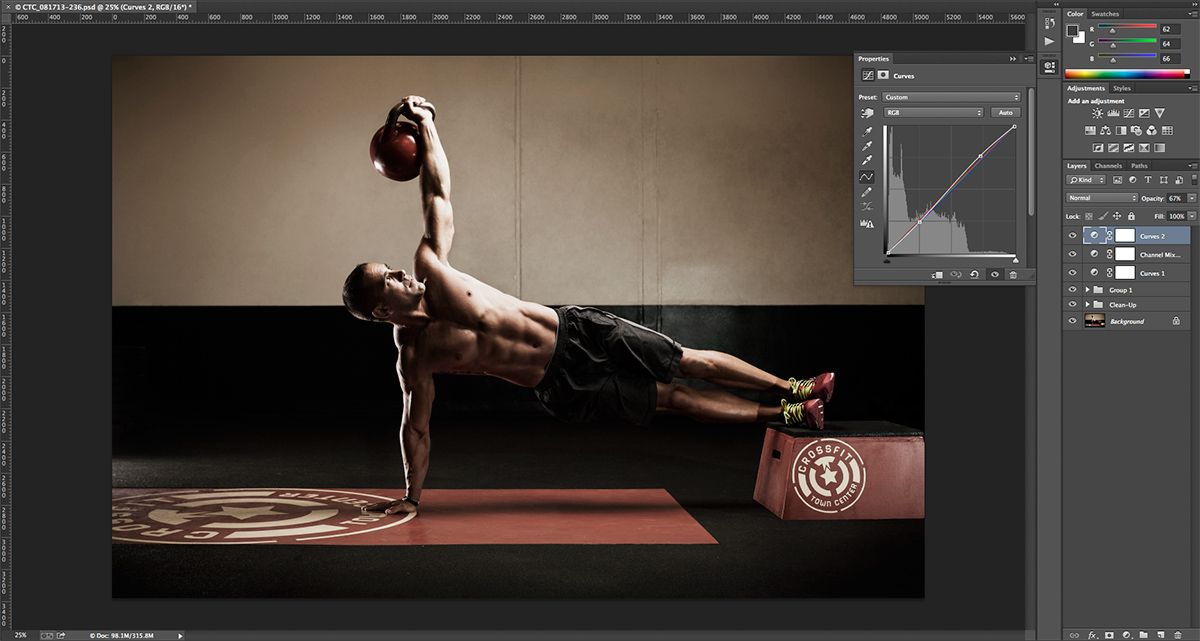
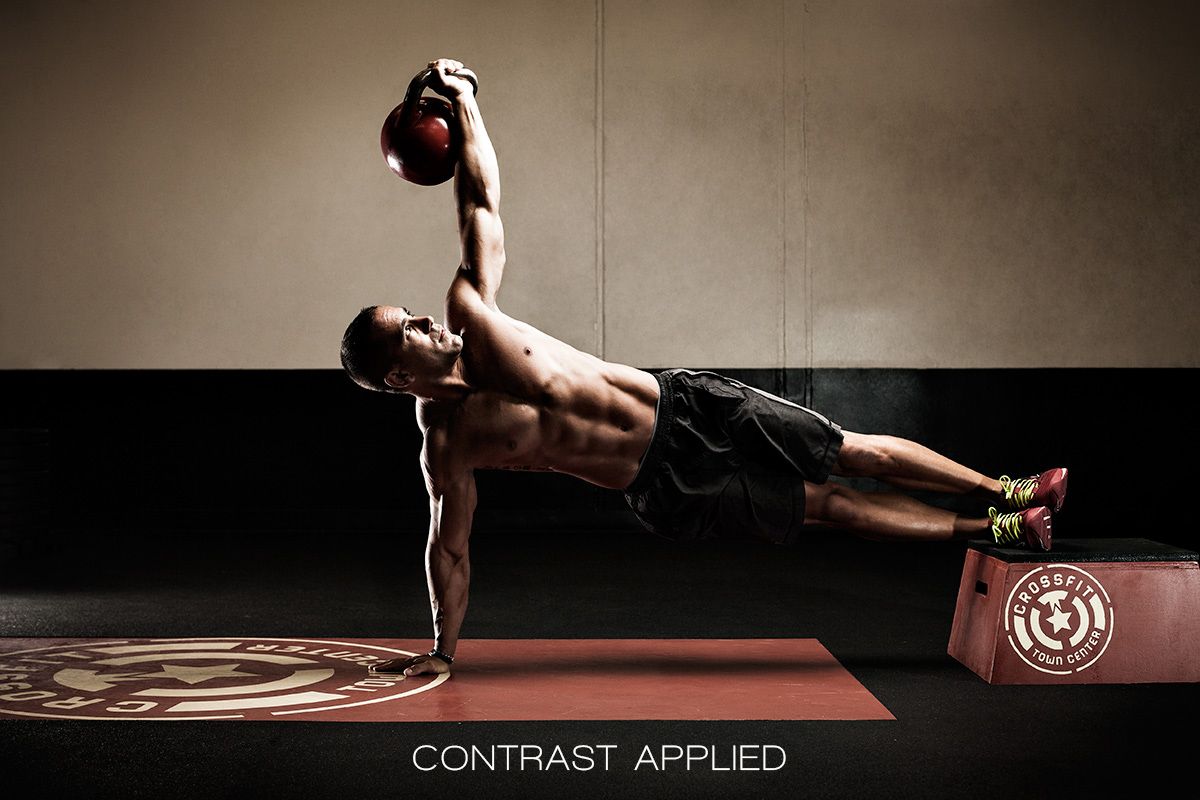
3. Dial it in. I lower the layer's opacity until the image pleases my eye. Then add your final touches, such as sharpening, and you're done. Here's the image with dynamic contrast applied.
Global contrast with curves
For overall contrast, I use a curves layer. Here's a before and after.
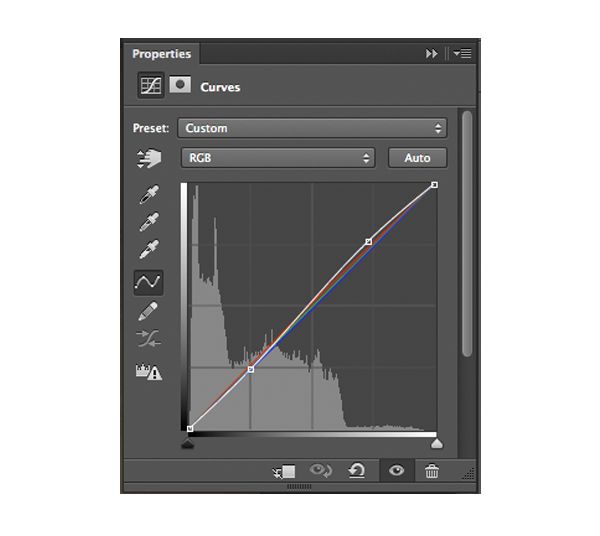
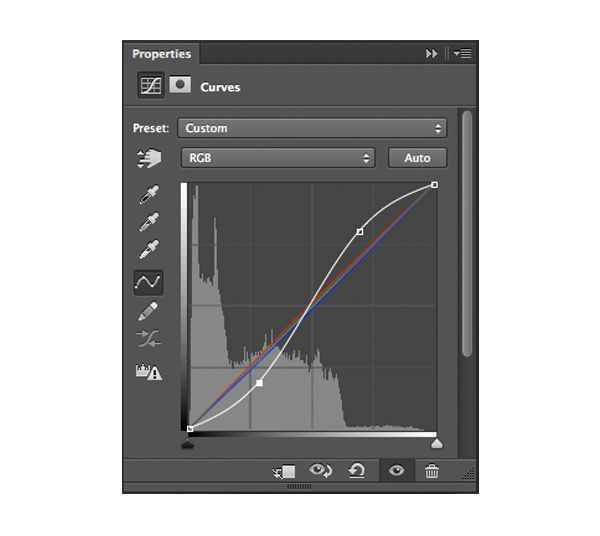
I don't necessarily use a textbook S-curve. I use a tweaked version that boosts the highlights and pulls the blacks down just enough to make a difference, then I dial it in with the layer's opacity, the same way I do with the dynamic contrast layer. I usually make my color changes in that same curves layer too, adding a little warmth or cooling the image depending on the look I want. You can see the S-curves I used below.
I hope this helps you create a dynamic, interesting look in your own photos.
Originally published on the Ruddock Visuals blog, September 2013. Lightly edited in 2026.